
 Sign Up
Get up and running with Reversion
Five minutes from now you’ll be trading on-chain perpetuals. This guide walks you through connecting your wallet, funding your account and making the necessary approvals to begin trading on Reversion.
-
Connect Your Wallet
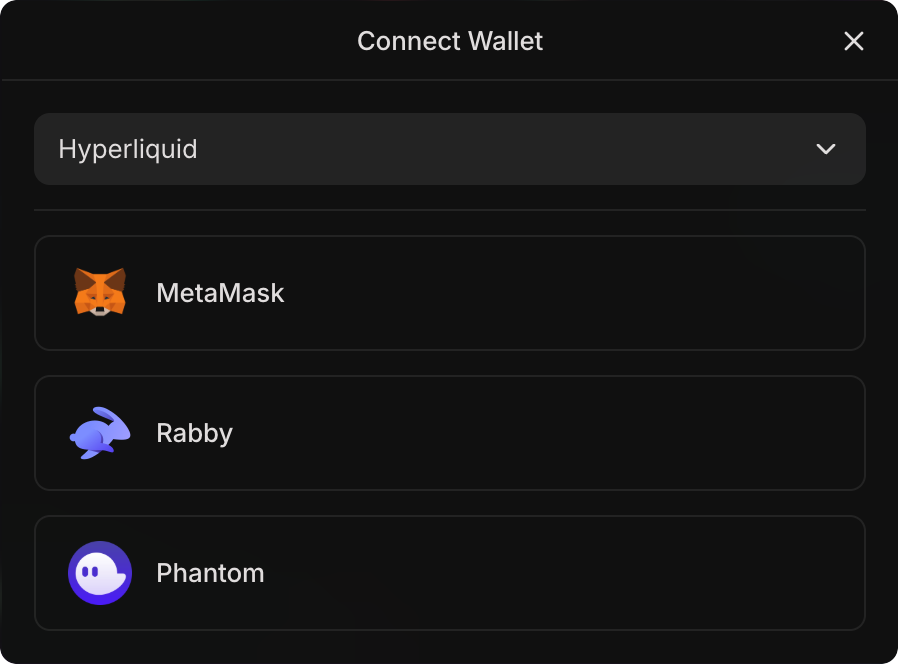
Open reversion.trade and click the wallet button in the top-right corner.
Pick your wallet from the list — we support:
- MetaMask
- Rabby
- Phantom
Approve the connection when your wallet prompts you.
-
Sign In
After connecting, you’ll see a Sign-In With Ethereum (SIWE) prompt. Sign the message to authenticate — this never shares your private keys.
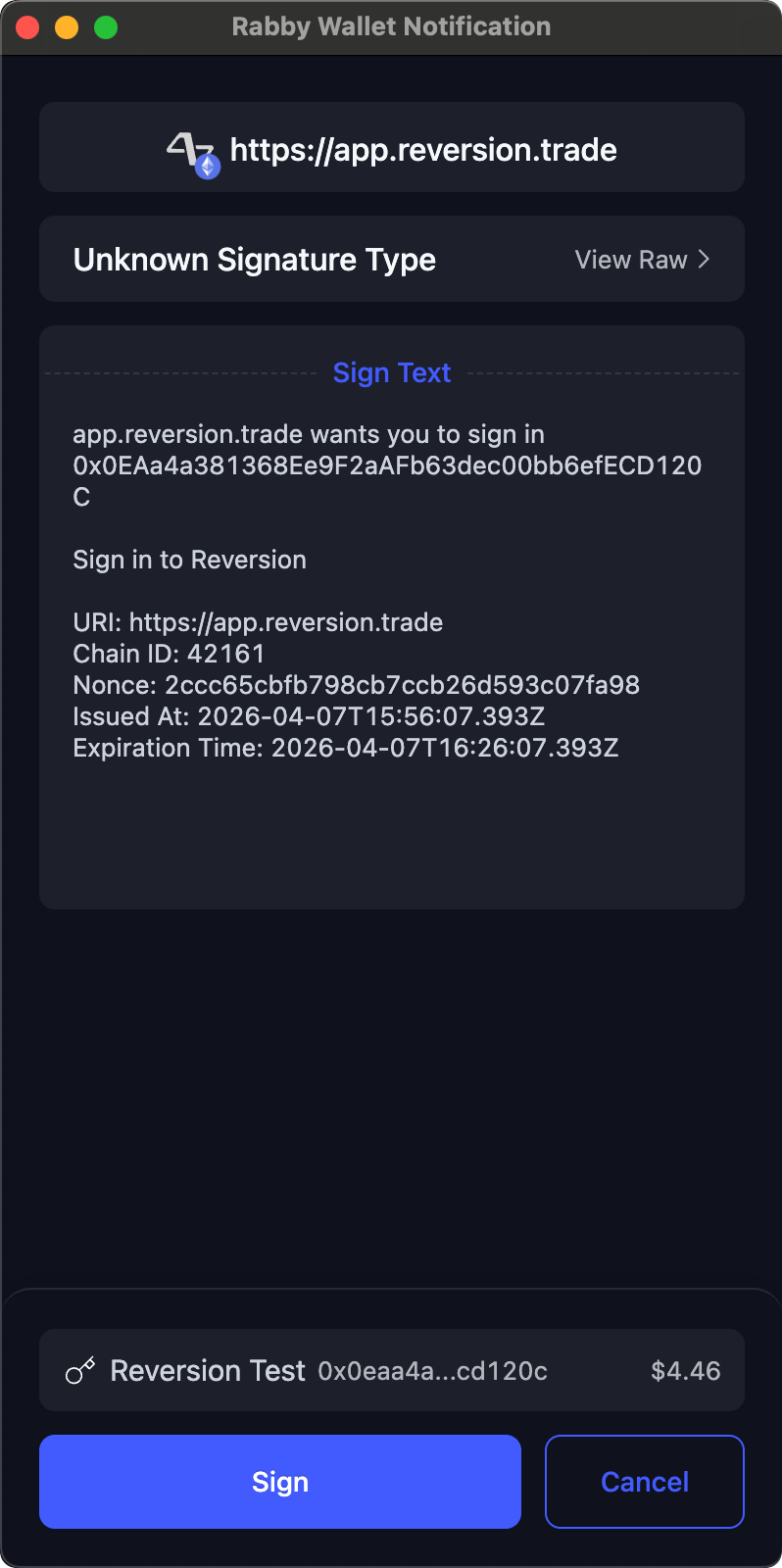
On your first sign-in, the platform automatically:
- Creates your Reversion account
- Generates an API wallet — a separate keypair for executing trades on Hyperliquid
- Prompts you to approve the API wallet on Hyperliquid
-
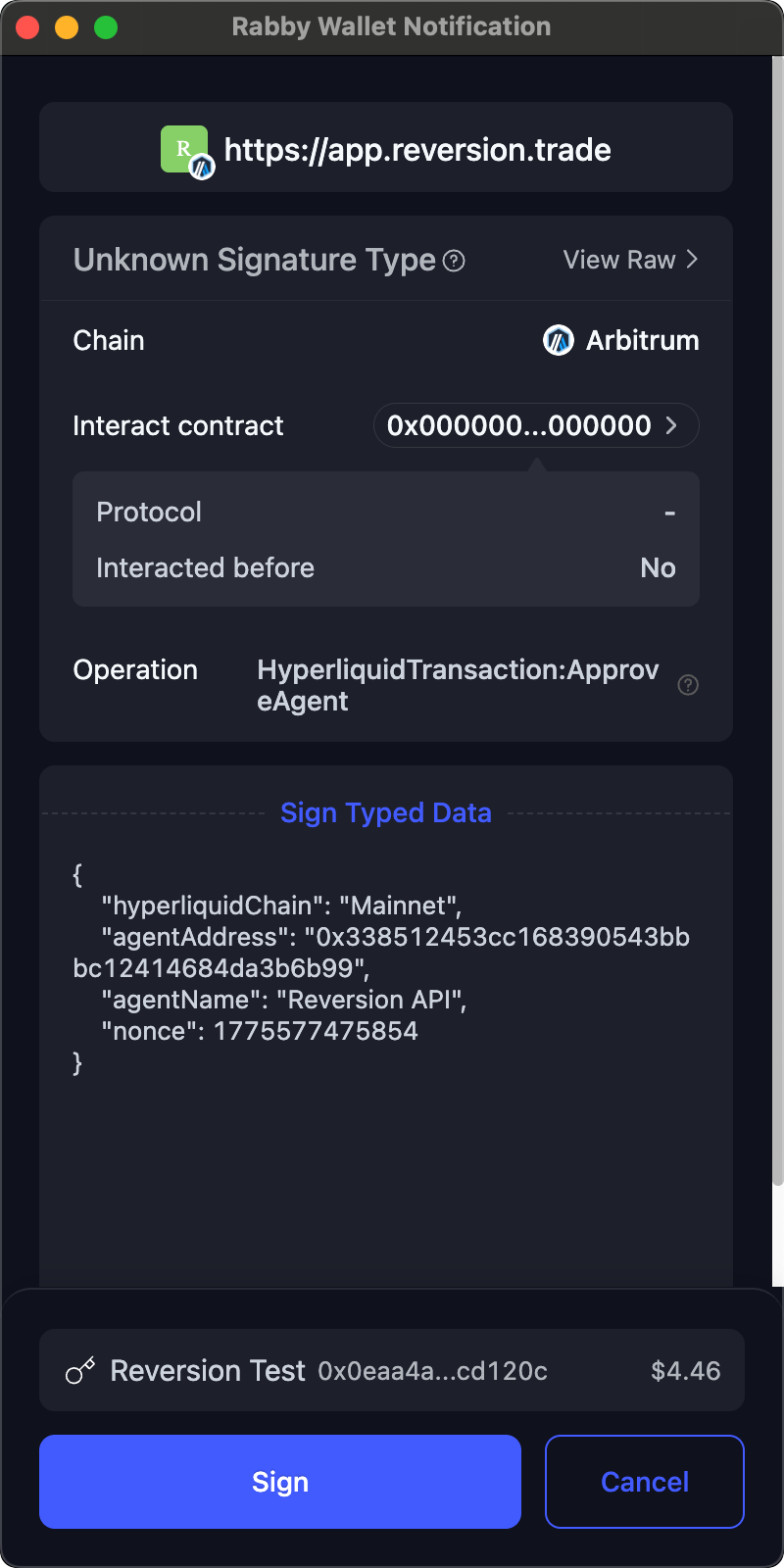
Approve the API Wallet
You’ll be prompted to approve the API wallet on Hyperliquid. This links the platform’s trade execution wallet to your account so it can place orders on your behalf.
-
Approve Platform Fees
Next, you’ll approve the platform fee — a one-time on-chain approval that authorizes a 0.035% per-trade platform fee through Hyperliquid’s builder fee mechanism.
-
Deposit Funds
Click the Deposit button in the header to add USDC to your Hyperliquid trading account.
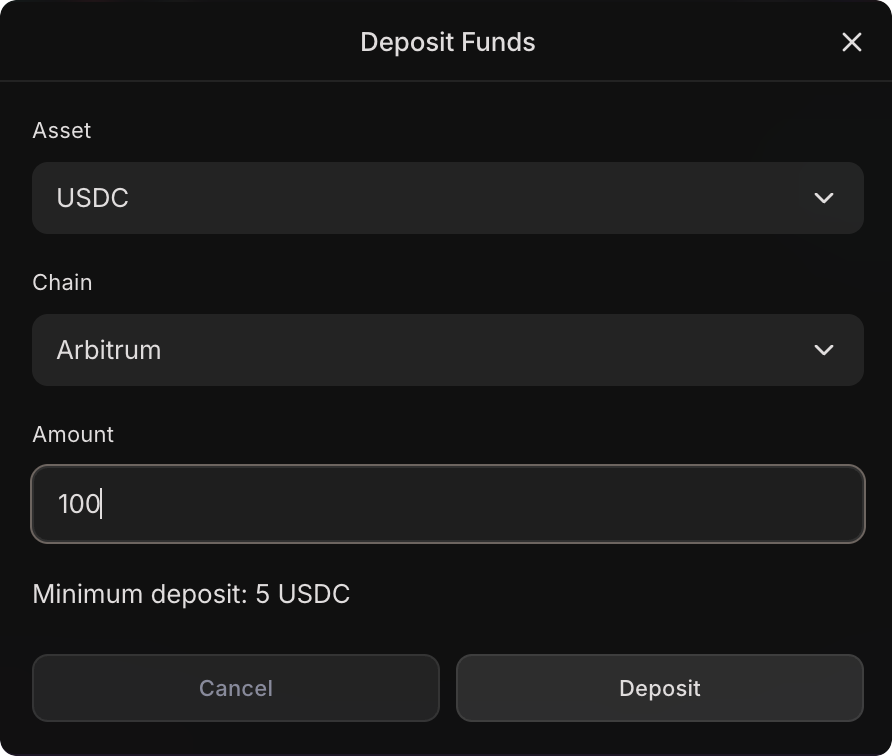
Deposits use the official Hyperliquid bridge from Arbitrum to Hyperliquid mainnet. Funds show up in your account and are ready to trade immediately after the deposit transaction has confirmed.
Need to move funds out? Use the Withdraw or Transfer options in the same menu.
-
AI Credits (Optional)
If you plan to use the Auto-Trading Agent, you’ll need AI credits to cover the cost of LLM API calls that power the agent’s market analysis, chart reading, and trade decisions.
Purchase a credit bundle from the AI Credits section in the header:
Bundle Credits Starter $20 Standard $50 Pro $100 Power $500 Credits are consumed as the agent runs — each market analysis, chart read, and trade decision uses a small amount. Your remaining balance is always visible in the header.
Choose Your Mode
Section titled “Choose Your Mode”Reversion has six tabs across the top of the app. Each one is a dedicated workspace; you can move between them at any time without losing state.
Trade — Manual Trading
Section titled “Trade — Manual Trading”Start here if… you want to place trades yourself using a full-featured trading terminal.
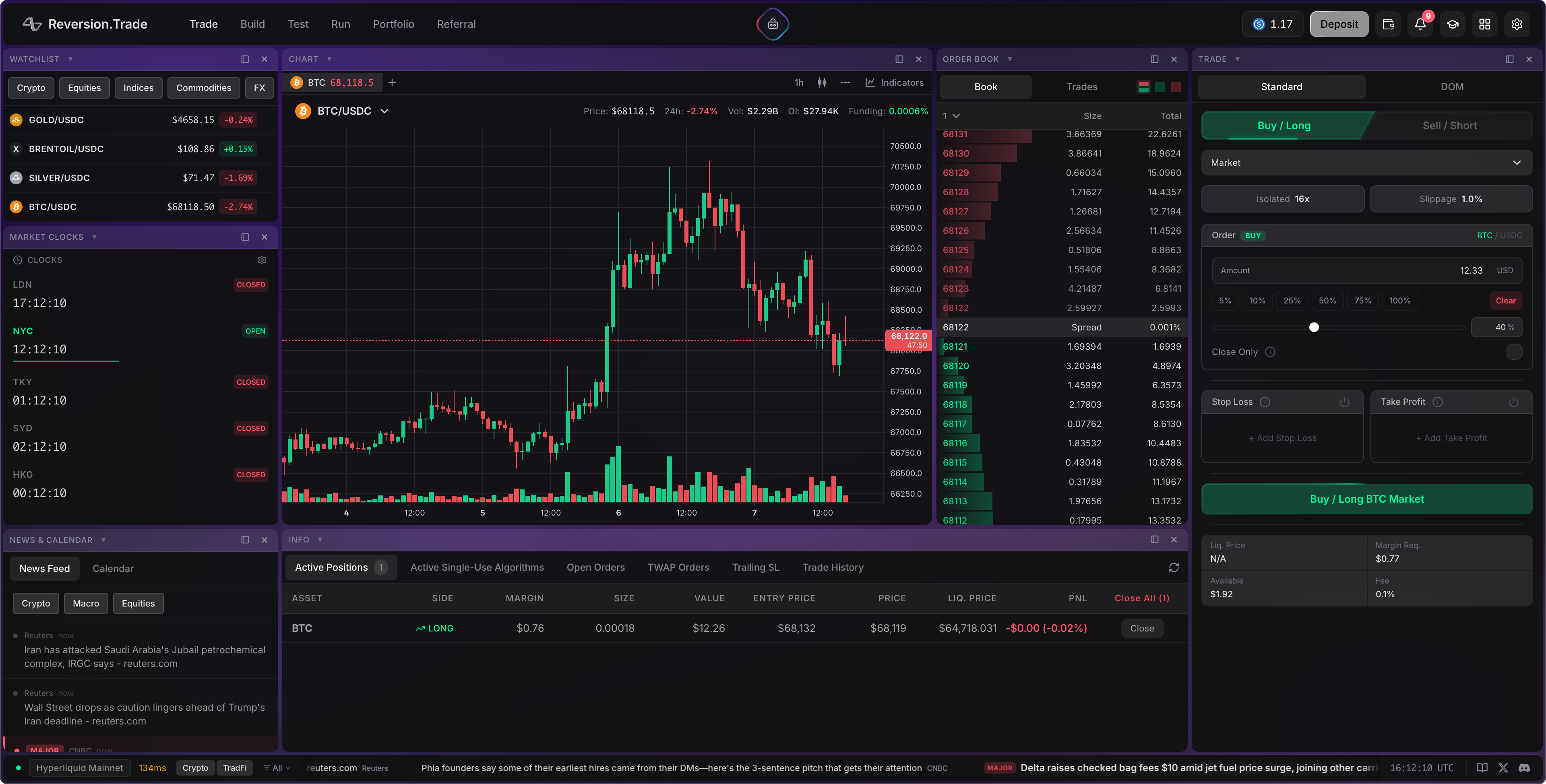
- Pick a market from the asset picker (e.g.,
BTC/USDC) - Set your leverage and margin mode (Cross or Isolated)
- Choose an order type — market, limit, stop loss, take profit, or TWAP
- Enter your size, pick buy or sell, and confirm
The Current Position card above the order form shows live PnL and adapts as you type — previewing your blended entry when you’re adding to a position, or projected realized PnL when you’re closing. The info panel at the bottom tracks open positions, open orders, fills and funding.
Build — Algorithm Builder
Section titled “Build — Algorithm Builder”Start here if… you want to design algorithmic strategies on a visual canvas — no code required.
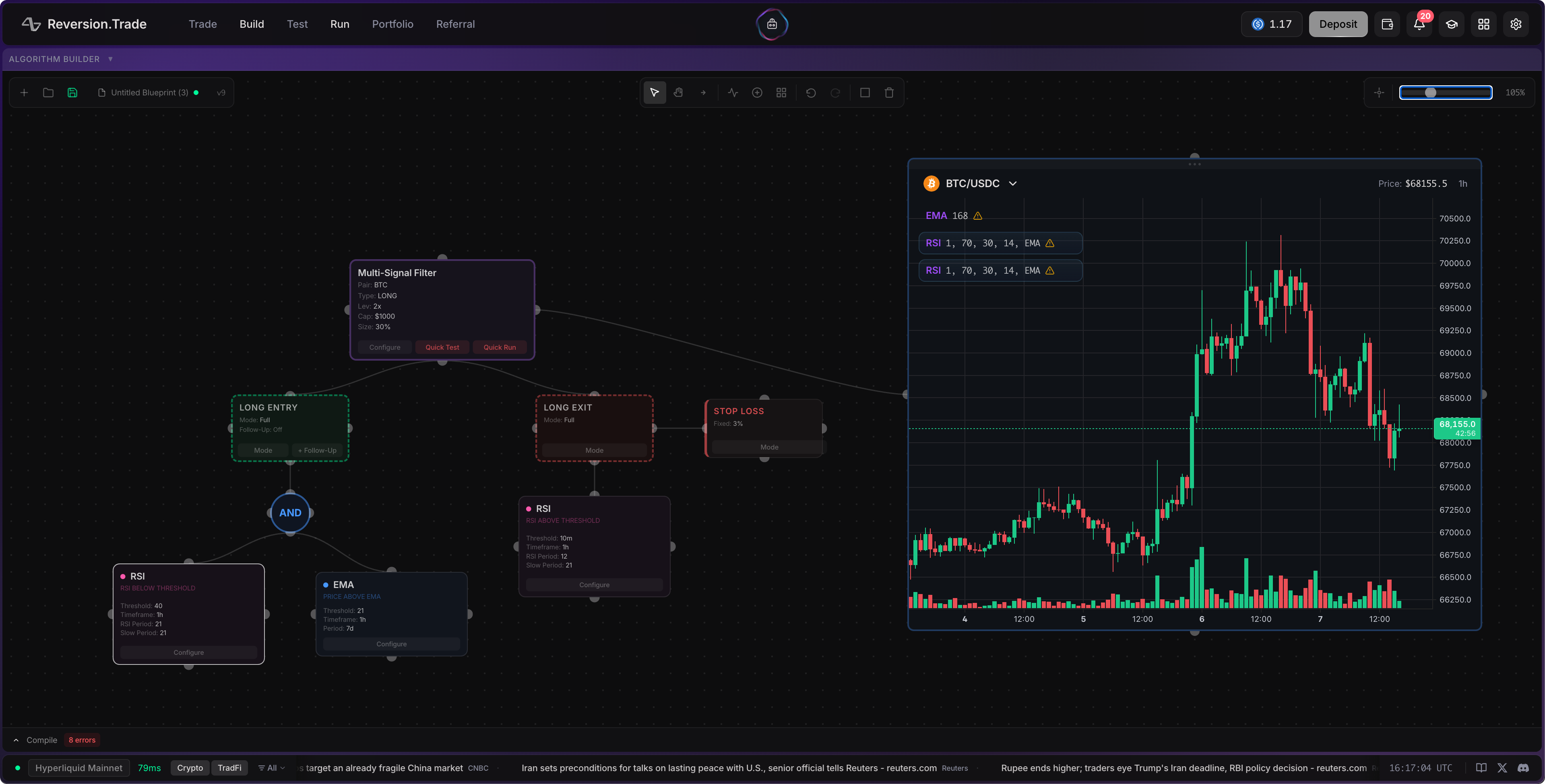
- Open the Build tab
- Drop indicator, entry, exit and protection nodes onto the canvas
- Wire them together to express your trading logic
- Hit Quick Test to backtest the current blueprint without leaving the canvas
- Compile and save when you’re happy
Build supports 60+ indicators and multi-algorithm blueprints from one workspace. You can iterate on the canvas, version saved algos, and share strategies across Test and Run via the canonical algo ID.
Test — Backtest & Optimize
Section titled “Test — Backtest & Optimize”Start here if… you’ve built an algorithm and want to validate it against historical data, sweep parameters, or run rolling cross-validation to detect overfit.
The Test workspace runs simulations with one click and surfaces equity curves, trade-by-trade detail, win/loss stats, and per-indicator contribution scores. Switch to the Optimize tab to sweep parameter spaces with Bayesian search, or to the Rolling-CV tab for out-of-sample validation across multiple time windows.
Run — Live Deployment
Section titled “Run — Live Deployment”Start here if… your strategy has passed backtesting and you want to deploy it live with a hard capital budget.
Run executes a compiled algorithm in real time against your wallet’s capital. Each Run has a hard Starting Capital cap (the algorithm can’t lose more than this notional × leverage), live state inspection, per-trade journaling, and Stop/Reverse controls. Start with a small Starting Capital, watch it for a few days, then relaunch larger once live execution matches your backtest.
Portfolio
Section titled “Portfolio”Start here if… you want an account-wide view across all your wallets — balances, open positions, fills, funding history, run-level PNL and aggregate stats. Trade-driven changes update in real time via WebSocket.
Referral
Section titled “Referral”Start here if… you want to share Reversion and earn from referees. 20% commission on platform fees, paid out monthly to your wallet automatically.
Three AI Agents
Section titled “Three AI Agents”Above the six tabs sit three AI agents:
- Research Agent — market research assistant for analyzing assets, comparing market structure, summarizing chart context, tracking narratives, and turning research into trade or strategy ideas.
- Algorithm Builder Agent — natural-language interface for the full Build → Test → Run lifecycle. 70+ tools. Use Reversion’s native agent inside the app or connect from Claude / OpenAI / Cursor / Windsurf via MCP.
- Auto-Trading Agent — autonomous discretionary trader with built-in risk management. Set your risk limits and connect an LLM API key; the agent watches markets, validates setups against chart context and news, executes trades, and manages positions. Two modes: copilot (you approve each trade) or full autonomy.
Explore
Section titled “Explore”| Want to… | Go to |
|---|---|
| Place trades manually | Trade Walkthrough → |
| Build an algorithm | Build Walkthrough → |
| Use AI for trading | Agent Walkthrough → |
| Browse indicators | Indicators → |
| Walk through all tutorials | Walkthrough → |
| Learn the full platform | Overview → |